【Playwright】端到端自动化的开源框架

什么是Playwright?
Playwright是一个开源框架,用于对Web应用进行端到端测试。
什么是端到端测试?
这里的“端”,不是指A模块或B模块,而是可以理解为从前端到后端。举个例子,对于登录功能来说,如果只测前端,那么测试范围就是前端页面,可能会对后端接口进行mock。如果只测后端,那么测试范围就是后端接口等。而端到端呢,就是前端输入用户名密码,点击登录,与后端交互,查询数据库,鉴权,后端返回登录成功,前端进行页面跳转。端到端测试,可以理解为全流程测试,也可以理解为模拟用户场景测试。
Playwright框架特点
官方网站首页:https://playwright.dev/python/
总结下重点,一是跨浏览器、跨平台、跨语言;二是自动等待;三是多用户场景测试;四是只需要一次登录;五是可以录制脚本。
快速入门
在官网的顶部菜单可以切换不同编程语言的教程:
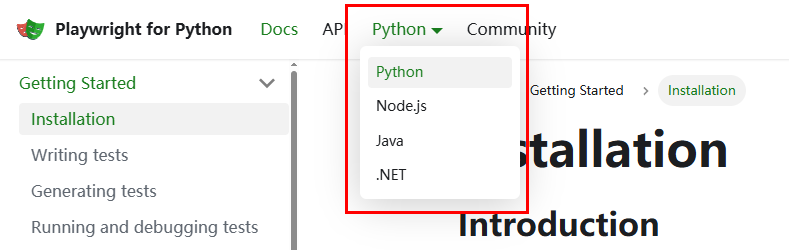
本文及后续文章均选择Python。
安装
安装Python的Playwright,这里结合了pytest:
pip install pytest-playwright
成功后安装浏览器:
playwright install
这里也可以不安装浏览器,而是在脚本里面指定现有浏览器路径。
示例
test_example.py
import re
from playwright.sync_api import Page, expect

def test_has_title(page: Page):
    page.goto("https://playwright.dev/")

    # Expect a title "to contain" a substring.
    expect(page).to_have_title(re.compile("Playwright"))

def test_get_started_link(page: Page):
    page.goto("https://playwright.dev/")

    # Click the get started link.
    page.get_by_role("link", name="Get started").click()

    # Expects page to have a heading with the name of Installation.
    expect(page.get_by_role("heading", name="Installation")).to_be_visible()
执行pytest后默认会选择chrome在headless模式下运行,可以通过日志观察运行过程。
更新命令:
pip install pytest-playwright playwright -U
编写测试
访问url:
page.goto("https://playwright.dev/")
通过locator定位页面元素进行交互:
## Create a locator.
get_started = page.get_by_role("link", name="Get started")

## Click it.
get_started.click()
也可以写成一行:
page.get_by_role("link", name="Get started").click()
常用的有以下方法:
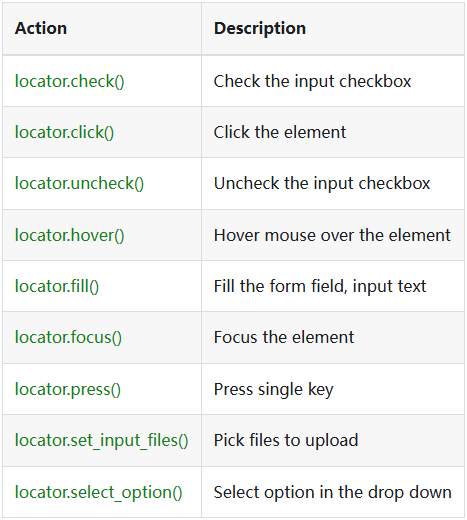
更多请访问:https://playwright.dev/python/docs/api/class-locator
断言:
import re
from playwright.sync_api import expect

expect(page).to_have_title(re.compile("Playwright"))
常见断言如下:
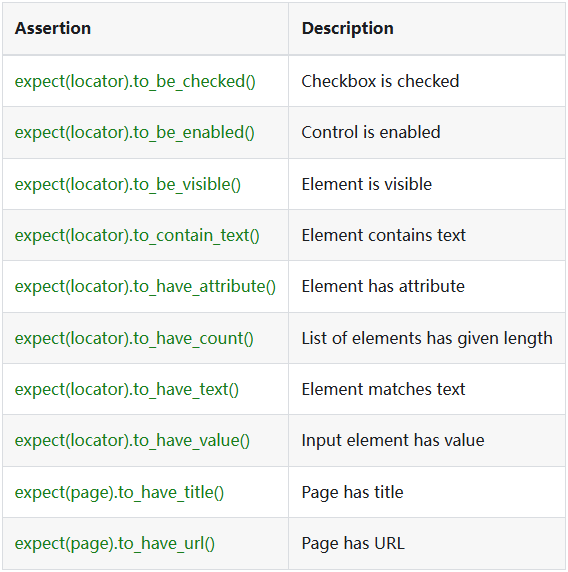
更多请访问:https://playwright.dev/python/docs/test-assertions
Playwright的test是相互独立的:
from playwright.sync_api import Page

def test_example_test(page: Page):
  pass
  # "page" belongs to an isolated BrowserContext, created for this specific test.

def test_another_test(page: Page):
  pass
  # "page" in this second test is completely isolated from the first test.
pytest的fixture也可以直接使用,比如在所有测试开始前和结束前执行某些操作:
import pytest
from playwright.sync_api import Page, expect

@pytest.fixture(scope="function", autouse=True)
def before_each_after_each(page: Page):

    print("before the test runs")

    # Go to the starting url before each test.
    page.goto("https://playwright.dev/")
    yield

    print("after the test runs")

def test_main_navigation(page: Page):
    # Assertions use the expect API.
    expect(page).to_have_url("https://playwright.dev/")
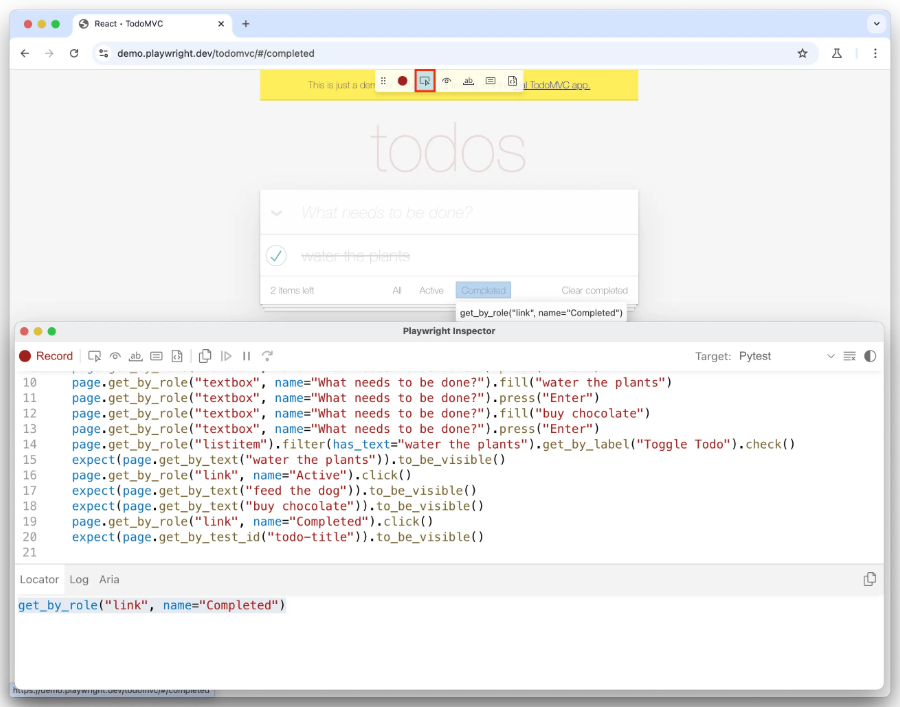
生成测试
使用codegen:
playwright codegen demo.playwright.dev/todomvc
然后就可以录制脚本了:
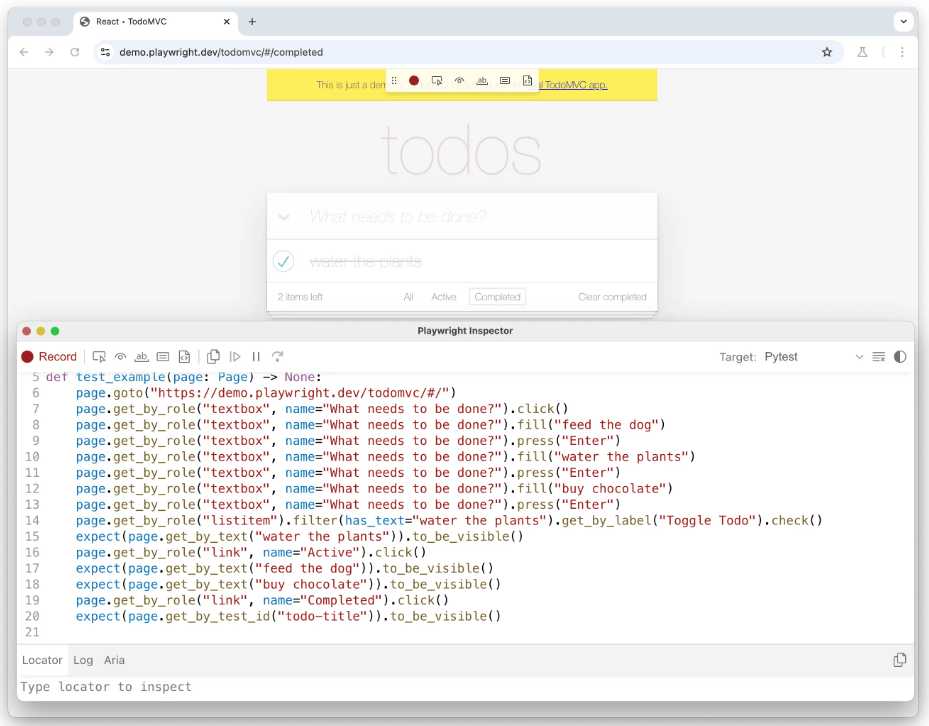
更多用法阅读:https://playwright.dev/python/docs/codegen
生成locators:
运行和调试
运行命令基本都是基于pytest,然后加了些参数:
pytest
pytest --headed
pytest --browser webkit
pytest --browser webkit --browser firefox
pytest test_login.py
pytest tests/test_todo_page.py tests/test_landing_page.py
pytest -k test_add_a_todo_item
pytest --numprocesses 2
调试通过Playwright Inspector进行:
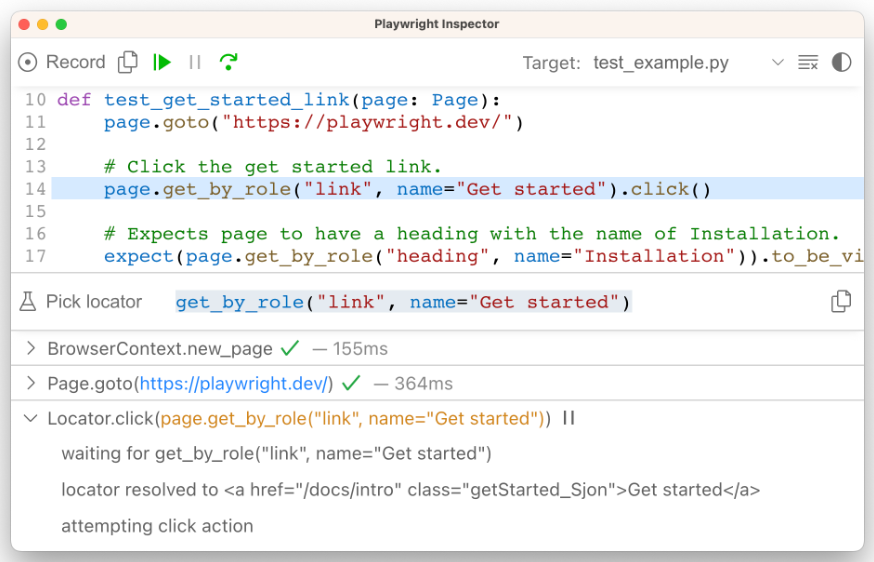
可以根据IDE比如PyCharm或Visual Studio,查找相应调试方法。
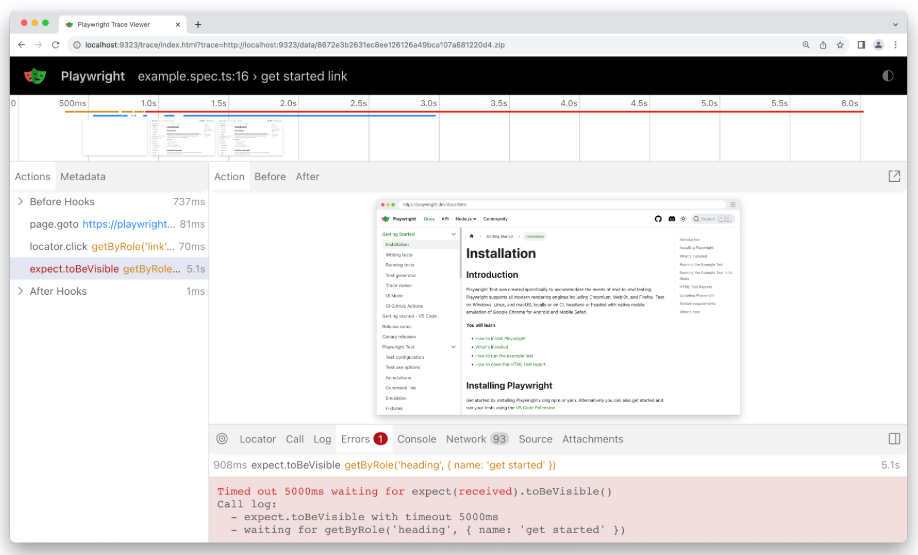
Trace viewer
监控Playwright,开启命令:
pytest --tracing on
打开监控:
playwright show-trace trace.zip
如果你打算做前端UI自动化,可以试试Playwright这款开源框架。